Opening Ceremony

Bhim Higher Secondary School Suntopar, Dolakha

Opening Ceremony

Bhim Higher Secondary School Suntopar, Dolakha

JCT Students (First Batch(2069-2070))

Bhim Higher Secondary School Suntopar, Dolakha

Opening Ceremony

Bhim Higher Secondary School Suntopar, Dolakha

Opening Ceremony

Bhim Higher Secondary School Suntopar, Dolakha

Tuesday, December 17, 2013

Artificial Intelligence


Artificial intelligence (AI) is technology and a branch of computer science that studies and develops intelligent machines and software. Major AI researchers and textbooks define the field as "the study and design of intelligent agents", where an intelligent agent is a system that perceives its environment and takes actions that maximize its chances of success.[2] John McCarthy, who coined the term in 1955, defines it as "the science and engineering of making intelligent machines".


AI research is highly technical and specialised, and is deeply divided into subfields that often fail to communicate with each other. Some of the division is due to social and cultural factors: subfields have grown up around particular institutions and the work of individual researchers. AI research is also divided by several technical issues. Some subfields focus on the solution of specific problems. Others focus on one of several possible approaches or on the use of a particular tool or towards the accomplishment of particular applications.


The central problems (or goals) of AI research include reasoning, knowledge, planning, learning, communication, perception and the ability to move and manipulate objects. General intelligence (or "strong AI") is still among the field's long term goals. Currently popular approaches include statistical methods, computational intelligence and traditional symbolic AI. There are an enormous number of tools used in AI, including versions of search and mathematical optimization, logic, methods based on probability and economics, and many others.


The field was founded on the claim that a central ability of humans, intelligence—the sapience of Homo sapiens—can be so precisely described that it can be simulated by a machine. This raises philosophical issues about the nature of the mind and the ethics of creating artificial beings, issues which have been addressed by myth, fiction and philosophy since antiquity. Artificial intelligence has been the subject of tremendous optimism but has also suffered stunning setbacks. Today it has become an essential part of the technology industry and many of the most difficult problems in computer science.


Monday, December 16, 2013

HTML (HyperText Markup Language)


HTML (Hypertext Markup Language) is the set of markup symbols or codes inserted in a file intended for display on a World Wide Web browser page. The markup tells the Web browser how to display a Web page's words and images for the user. Each individual markup code is referred to as an element (but many people also refer to it as a tag). Some elements come in pairs that indicate when some display effect is to begin and when it is to end.

HTML is a formal Recommendation by the World Wide Web Consortium (W3C) and is generally adhered to by the major browsers, Microsoft's Internet Explorer and Netscape's Navigator, which also provide some additional non-standard codes. The current version of HTML is HTML 4.0. However, both Internet Explorer and Netscape implement some features differently and provide non-standard extensions. Web developers using the more advanced features of HTML 4 may have to design pages for both browsers and send out the appropriate version to a user. Significant features in HTML 4 are sometimes described in general as dynamic HTML. What is sometimes referred to as HTML 5 is an extensible form of HTML called Extensible Hypertext Markup Language (XHTML).
 

Sunday, December 15, 2013

Booting, Cold Boot, Warm Boot


To boot (as a verb; also "to boot up") a computer is to load an operating system into the computer's main memory or random access memory (RAM). Once the operating system is loaded (and, for example, on a PC, you see the initial Windows or Mac desktop screen), it's ready for users to run applications. Sometimes you'll see an instruction to "reboot" the operating system. This simply means to reload the operating system (the most familiar way to do this on PCs is pressing the Ctrl, Alt, and Delete keys at the same time).
On larger computers (including mainframes), the equivalent term for "boot" is "initial program load" (IPL) and for "reboot" is "re-IPL." Boot is also used as a noun for the act of booting, as in "a system boot." The term apparently derives from bootstrap which is a small strap or loop at the back of a leather boot that enables you to pull the entire boot on. There is also an expression, "pulling yourself up by your own bootstraps," meaning to leverage yourself to success from a small beginning. The booting of an operating system works by loading a very small program into the computer and then giving that program control so that it in turn loads the entire operating system.
Booting or loading an operating system is different than installing it, which is generally an initial one-time activity. (Those who buy a computer with an operating system already installed don't have to worry about that.) When you install the operating system, you may be asked to identify certain options or configuration choices. At the end of installation, your operating system is on your hard disk ready to be booted (loaded) into random access memory, the computer storage that is closer to the microprocessor and faster to work with than the hard disk. Typically, when an operating system is installed, it is set up so that when you turn the computer on, the system is automatically booted as well. If you run out of storage (memory) or the operating system or an application program encounters an error, you may get an error message or your screen may "freeze" (you can't do anything). In these events, you may have to reboot the operating system.
How Booting Works

Note: This procedure may differ slightly for Mac, UNIX, OS/2, or other operating systems.
When you turn on your computer, chances are that the operating system has been set up to boot (load into RAM) automatically in this sequence:
1.      As soon as the computer is turned on, the basic input-output system (BIOS) on your system's read-only memory (ROM) chip is "woken up" and takes charge. BIOS is already loaded because it's built-in to the ROM chip and, unlike random access memory (RAM), ROM contents don't get erased when the computer is turned off.
2.      BIOS first does a power-on self test (POST) to make sure all the computer's components are operational. Then the BIOS's boot program looks for the special boot programs that will actually load the operating system onto the hard disk.
3.      First, it looks on drive A (unless you've set it up some other way or there is no diskette drive) at a specific place where operating system boot files are located. If there is a diskette in drive A but it's not a system disk, BIOS will send you a message that drive A doesn't contain a system disk. If there is no diskette in drive A (which is the most common case), BIOS looks for the system files at a specific place on your hard drive.
4.      Having identified the drive where boot files are located, BIOS next looks at the firstsector (a 512-byte area) and copies information from it into specific locations in RAM. This information is known as the boot record or Master Boot Record.
5.      It then loads the boot record into a specific place (hexadecimal address 7C00) in RAM.
6.      The boot record contains a program that BIOS now branches to, giving the boot record control of the computer.
7.      The boot record loads the initial system file (for example, for DOS systems, IO.SYS) into RAM from the diskette or hard disk.
8.      The initial file (for example, IO.SYS, which includes a program called SYSINIT) then loads the rest of the operating system into RAM. (At this point, the boot record is no longer needed and can be overlaid by other data.)
9.      The initial file (for example, SYSINIT) loads a system file (for example, MSDOS.SYS) that knows how to work with the BIOS.
10.  One of the first operating system files that is loaded is a system configuration file (for DOS, it's called CONFIG.SYS). Information in the configuration file tells the loading program which specific operating system files need to be loaded (for example, specific device driver.
11.  Another special file that is loaded is one that tells which specific applications or commands the user wants to have included or performed as part of the boot process. In DOS, this file is named AUTOEXEC.BAT. In Windows, it's called WIN.INI.
12.  After all operating system files have been loaded, the operating system is given control of the computer and performs requested initial commands and then waits for the first interactive user input.

Reboot (warm boot, cold boot)


To reboot is to restart a computer and reload the operating system. The most common reasons to reboot are because the installation of new software or hardware requires it, or because applications are not responding for some reason. On computers running Windows, you can usually reboot by selecting "turn off computer" from the start menu and then clicking "restart" in the window that pops up. Another way (and one that works sometimes when the first way doesn't) is through the Ctrl-Alt-Delete keystroke combination, which was developed as an easy way to reboot a computer that would nevertheless be an unlikely accidental keystroke combination.
Rebooting a computer through the menu option or the keystroke combination is sometimes referred to as a warm boot, perhaps because it is more gentle than the alternative cold boot(simply pressing the computer's power button once to turn it off and then again to turn it back on).
On larger computers (including mainframes), the equivalent term for "boot" is "initial program load" (IPL) and for "reboot" is "re-IPL."


Visual Basic


Visual Basic is a third-generation event-driven programming language and integrated development environment (IDE) from

Microsoft for its COM programming model first released in 1991.Microsoft intends Visual Basic to be relatively easy to learn and use.

 Visual Basic was derived from BASIC and enables the rapid application development (RAD) of graphical user interface (GUI) applications, access to databases using Data Access Objects, Remote Data Objects, or ActiveX Data Objects, and creation of ActiveX controls and objects.

A programmer can create an application using the components provided by the Visual Basic program itself. Programs written in Visual Basic can also use the Windows API, but doing so requires external function declarations. Though the program has received criticism for its perceived faults, version 3 of Visual Basic was a commercial success,[citation needed] and many companies offered third party controls greatly extending its functionality.

The final release was version 6 in 1998. Microsoft's extended support ended in March 2008 and the designated successor was

Visual Basic .NET (now known simply as Visual Basic).

Though Visual Basic 6.0 is no longer officially available there remains a sizable number of developers who still prefer

Visual Basic 6.0 over .NET.[citation needed]
A dialect of Visual Basic, Visual Basic for Applications (VBA), is used as a macro or scripting language within several

Microsoft applications, including Microsoft Office.


Saturday, December 14, 2013

HDTV (high definition television)


HDTV (high definition television) is a television display technology that provides picture quality similar to 35 mm. movies with sound quality similar to that of today's compact disc. Some television stations have begun transmitting HDTV broadcasts to users on a limited number of channels. HDTV generally uses digital rather than analog signal transmission. However, in Japan, the first analog HDTV program was broadcast on June 3, 1989. The first image to appear was the Statue of Liberty and the New York Harbor. It required a 20 Mhzchannel, which is why analog HDTV broadcasting is not feasible in most countries.

HDTV and standard definition television (SDTV) are the two categories of display formats for digital television (DTV) transmissions, which are becoming the standard. HDTV provides a higher quality display with a vertical resolution display from 720p to 1080i. The p stands forprogressive scanning, which means that each scan includes every line for a complete picture, and the i stands for interlaced scanning which means that each scan includes alternate lines for half a picture. These rates translate into a frame rate of up to 60 frames per second, twice that of conventional television.

 One of HDTV's most prominent features is its wider aspect ratio (the width to height ratio of the screen) of 16:9, a development based on research showing that the viewer's experience is enhanced by screens that are wider. HDTV pixel numbers range from one to two million, compared to SDTV's range of 300,000 to one million. New television sets will be either HDTV-capable or SDTV-capable, with receivers that can convert the signal to their native display format.

In terms of audio quality, HDTV receives, reproduces, and outputs Dolby Digital 5.1.
In the United States, the FCC has assigned broadcast channels for DTV transmissions. In SDTV formats, DTV makes it possible to use the designated channels for multiple signals at current quality levels instead of single signals at HDTV levels, which would allow more programming with the same bandwidth usage. Commercial and public broadcast stations are currently deciding exactly how they will implement their use of HDTV.


HDTV uses the MPEG-2 file format and compression standard.

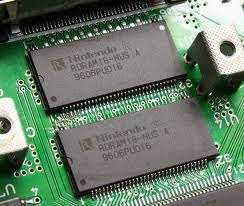
RDRAM (Rambus Dynamic Random Access Memory)


Rambus Dynamic Random Access Memory (RDRAM) is a memory subsystem that promises to transfer up to 1.6 billion bytes per second. The subsystem consists of the random access memory, the RAM controller, and the bus (path) connecting RAM to the microprocessor and devices in the computer that use it. Direct Rambus (DRDRAM), a technology developed and licensed by the Rambus Corporation, will be used with microprocessors beginning in 1999.


 High-speed RAM is expected to accelerate the growth of visually intensive interfaces such as 3-D, interactive games, and streaming multimedia. Rambus is intended to replace the current main memory technology of dynamic random access memory (DRAM). Much faster data transfer rates from attached devices such as videocams using FireWire and the Accelerated Graphics Port (AGP) make it important to reduce the bottleneck in getting data into the computer, staging it in RAM, and moving it throught the microprocessor and to the display or other output devices.

Direct Rambus (DRDRAM) provides a two-byte (16 bit) bus rather than DRAM's 8-bit bus. At a RAM speed of 800 megahertz (800 million cycles per second), the peak data transfer rate is 1.6 billion bytes per second. Direct Rambus uses pipelining to move data from RAM tocache memory levels that are closer to the microprocessor or display. Up to eight operations may be underway at the same time. Rambus is designed to fit into existing motherboardstandards. The components that are inserted into motherboard connections are called Rambus in-line memory modules (RIMMs). They can replace conventional dual in-line memory modules.
A proposed alternative to DRDRAM is SyncLink DRAM (SDRAM).

Maximum Capacity of RAM in Different OS


For More Tips, Tweaks and Tricks:
Click Here: http://www.facebook.com/morganglboal
Click Hree: http://bhssjct.blogspot.com

OS (Operating System)                                                    Amount of RAM Supported
------------------------- -----------------------------
Windows 8 64 bit Enterprise, Professional                                       512 GB
Windows 8 64 bit                                                                            128 GB
Windows 8 32 bit                                                                             4 GB

Windows 7 64 bit Ultimate, Enterprise & Professional                       192 GB
Windows 7 64 bit Home Premium                                                     16 GB
Windows 7 64 bit Home Basic                                                           8 GB
Windows 7 32 bit (all editions except Starter)                                     4 GB
Windows 7 32 bit Starter                                                                   2 GB

Windows Vista 64 bit Ultimate, Enterprise & Business                     128 GB
Windows Vista 64 bit Home Premium                                                 16 GB
Windows Vista 64 bit Home Basic                                                      8 GB
Windows Vista 32 bit (all editions except Starter)                                4 GB
Windows 7 32 bit Starter                                                                    1 GB

Windows XP 64 bit                                                                             128 GB
Windows XP 32 bit                                                                             4 GB


Mac OS X 64 bit                                                                                96 GB

Linux 64 bit                                                                                        1 TB
Linux 32 bit                                                                                         4 GB
Linux 32 bit (with PAE)                                                                       64 GB


Taking a closer look at the table above, you will notice that 32 bit operating systems can access just 4 GB of RAM

at most.

And there's more bad news: This 4 GB memory limit is shared between RAM and other devices (e.g. video, audio and

network memory) so this further reduces the amount of available RAM to 3 - 3.5 GB in most cases.

Note: If you intend to have 4 GB of RAM or more, it's highly recommended that you install a 64 bit operating

system (unless you are stuck with primitive device drivers or programs that only work in 32 bit).

For More Tips, Tweaks and Tricks:
Click Here: http://www.facebook.com/morganglboal
Click Hree: http://bhssjct.blogspot.com